Best Trending Images To Video, Lyrical, Stunning Backgrounds Creating VN App
A birthday is coming up, or a festival, and you want to turn twenty photos into something with music and moving text rather than a plain gallery slideshow. That format has a name on Indian feeds, the lyrical video, and template-driven editors made it something a complete beginner can finish in an evening.
This guide assumes you have never opened a video editor. It walks through the first launch, the choices that decide whether the result looks careful or careless, and the specific things templates cannot do for you. The app used throughout is VN, free on both mobile platforms.
Related read on replacing the soundtrack in a clip you already have
What A Template Is Doing On Your Behalf
A template is a finished edit with the pictures taken out. Somebody chose the timing, the movement, the text placement and the transitions, then left numbered slots where your photos go. You are not designing anything. You are casting your images into a shape that already works.
That is why the results look polished so quickly, and it is also the limitation. The timing was decided for photos other than yours. A slot built for a wide group shot will crop an upright portrait mercilessly, and no amount of tapping fixes a template that simply wants a different picture.
The First Launch, And What To Grant
On opening, the app asks for access to photos and media. That one is unavoidable, since an editor with no sight of your gallery has nothing to edit. Newer Android versions let you grant access to selected items rather than everything, which is worth choosing if you have photos you would rather no app enumerated.
- Photos and media access is required and cannot be skipped
- Storage permission is what allows a finished file to be written back to your gallery
- Notifications are optional and mostly promotional, so decline without worry
- Templates download individually, meaning the first few need a connection
- Downloaded templates and project files build up quietly, so clear old projects occasionally
Before making anything, open the settings and set your output quality. Doing this once saves you from discovering after an hour of work that everything rendered at a resolution too low for a full phone screen.
Choosing Photos That Will Survive The Edit
This is the step beginners skip and professionals spend the longest on. Templates move, zoom and crop, so a photograph needs room around the subject to be pushed about. A tightly framed face with no space above the head will be cut through the forehead the moment a slot pans upward.
Pick pictures with breathing space, reasonable sharpness and consistent brightness. Mixing a bright outdoor shot with a dim indoor one inside the same sequence makes the whole thing feel thrown together, and no filter fully hides the jump. If you have thirty candidates, choosing the best twelve produces a better video than forcing all thirty in.
Your First Video From Start To Finish
Browse templates by where it will be posted: Reel, story and square formats are listed separately. Choose by destination first, because changing your mind later means starting again.
Check the slot count before downloading: Every template states how many pictures it expects. Matching that number exactly avoids the awkward stretch of repeating an image to fill a gap.
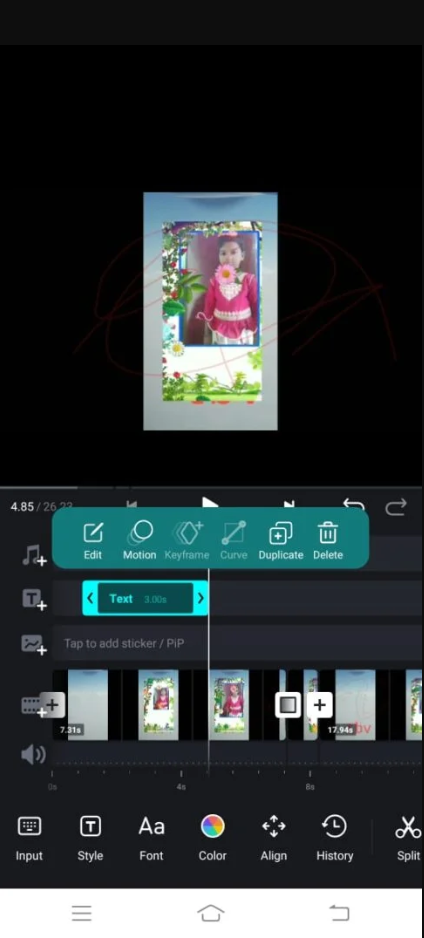
Download the template, then load your photos: Tap download to bring it into the app, then fill the slots from your gallery in the order you want them to appear.
Reorder before adjusting anything else: Sequence matters more than any effect. Get the story order right while changes are still cheap.
Nudge the crop inside each slot: Every filled slot can be dragged and pinched. Two seconds per photo repositioning a face into frame lifts the finished video noticeably.
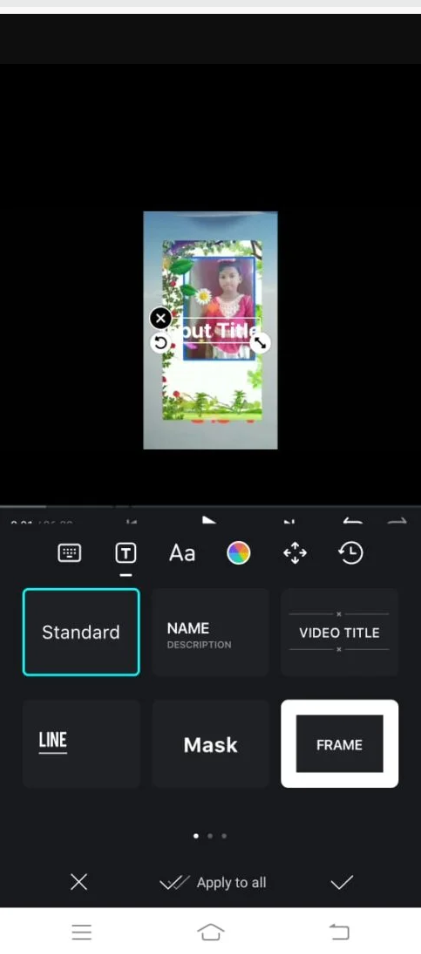
Replace the placeholder text: Tap each text element and type your own words. Keep the original line breaks where you can, since the animation was timed around them.
Preview at full length before saving: Watch it through once without touching the screen. Problems show up in playback that never show up while editing.
Save to the gallery, then post from there: Export to your device first rather than publishing straight out of the editor, so you keep a full-quality copy independent of any app.
Making Text Readable On A Small Screen
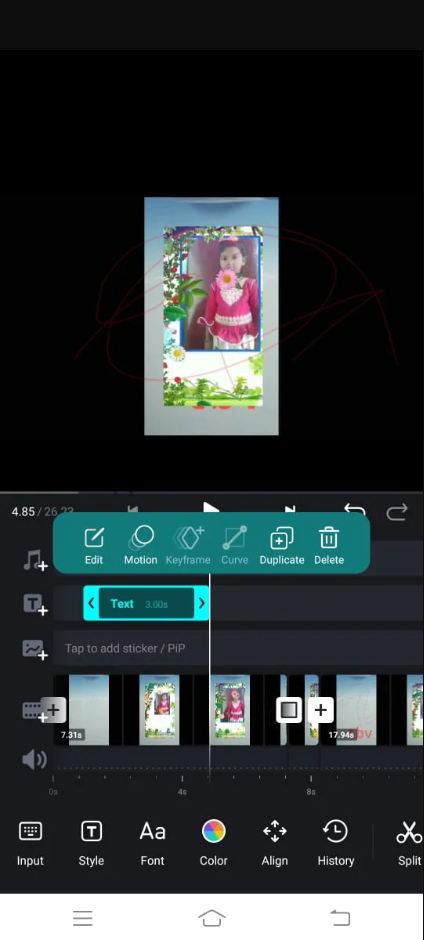
Text is where amateur edits give themselves away. A phrase that looks fine on the editing canvas becomes unreadable once someone is watching on a cracked screen in daylight, and lyrical formats depend on the words landing.
- Keep lines short, because two lines of five words beat one line of twelve
- Leave text on screen long enough to be read twice at a comfortable pace
- Avoid placing words in the lower area that platform captions and buttons cover
- Light text over a dark photo is safer than dark text over a busy one
- Add a soft shadow or a slight outline when the background behind a word is complicated
- Stick to one or two typefaces across the whole video rather than one per slide
Building One Without A Template
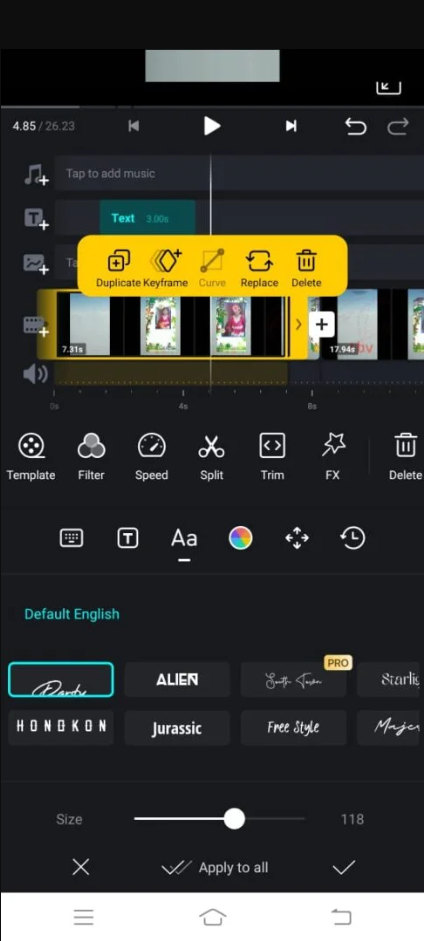
Templates are training wheels, and there comes a point where they get in the way. Starting from a blank project means dropping photos onto a timeline yourself, setting how long each one holds, and adding movement by hand. It takes considerably longer and the result is yours rather than one of ten thousand copies of the same layout.
A workable middle path is to open a template, keep its timing, and replace its text styling and colours with your own. You inherit the rhythm somebody else worked out while shedding the look everyone recognises. Save that as a reusable project and your second video takes a fraction of the time the first one did.
Ratios, Destinations And The Watermark Question
Vertical suits reels and stories, square suits feed posts, and wide suits video platforms. Exporting one ratio and cropping it later always costs quality, so decide the destination before the first tap. If a video is genuinely going everywhere, build the vertical version and leave empty margins where the crop will fall.
Watermarking is worth knowing about because it varies. This editor allows a clean export without one, which is a large part of why it spread by word of mouth, but many competing template apps burn a logo across the corner unless you subscribe. Check that on any editor before investing an evening in it.
VN For Photo-To-Video Editing
- Template variety — plenty for reels, stories and greetings
- Beginner friendliness — the guided route is genuinely usable on day one
- Manual control — full timeline available once templates stop being enough
- Originality of output — hard to avoid resembling every other template video
Summary
An easy start with a real editor underneath it, provided you eventually outgrow the presets.
The Honest Drawbacks
Popular templates saturate quickly. A layout that looked striking in the morning has been used by thousands of people by the evening, and viewers recognise the format before they register your photographs. If that bothers you, change the text styling and colours rather than accepting the preset as delivered.
The rendering also asks a lot of the phone. Older handsets stutter during preview and can take several minutes over a short export, and the device warms up noticeably. That is the cost of doing on a phone what used to require a desktop, and it is not a fault of the app.
One more caution about music. Templates often arrive with a suggested track, and a track that is fine inside the app is not automatically fine on a public account. Anything you publish should use audio you are entitled to use, from a platform library or a licensed source.
Beginner Questions We Are Asked Most
Do I need editing experience? None. The template route asks you to choose pictures and type words, which is genuinely the whole skill required for a first video.
Can I use it on an iPhone? Yes, the app is published on both stores and the template libraries broadly correspond.
How many photos should I use? Roughly one image for every two to three seconds of runtime. Fewer photos held longer nearly always feels calmer than many photos flashing past.
Can I put video clips into a photo template? Usually yes. The slot trims your clip to its allotted length, and you can choose which portion is used.
Where does my finished file go? Into your device gallery once you export, at which point any app can post it and the editor is no longer involved.
Recommended for anyone making greeting videos, festival posts or photo montages who wants a respectable result without learning an editing suite. Less suitable if you need a distinctive visual identity, since template work looks like template work no matter how good your photographs are. Both store listings are below.