Facetoon Photo/Video Editing App
Retouching a portrait used to mean a desktop editor, a zoomed-in view and a great deal of patience with a clone tool. Facetune took that job, hid it behind sliders, and made it fit on a phone screen. That single decision explains why the app has outlasted most of the imitators that followed it.
What follows is a tool-by-tool look rather than a sales pitch. You will find what each section of the toolbar does, how the automatic corrections make their guesses, the point at which an edit stops looking like a photograph, and whether the video mode deserves the space it takes up on your phone.
Why A Face-Aware Editor Beats Your Gallery App
Your phone gallery already has an editor. It handles crop, exposure, warmth and a stack of preset filters, and for a landscape or a plate of food that is honestly all you need. None of those controls know they are looking at a person. Raise brightness on a portrait and you lift the shine on a forehead exactly as much as the shadow under a chin.
A face-aware editor behaves differently. It finds landmarks first, then confines changes inside those boundaries. Softening runs on skin and skips eyelashes. Whitening targets enamel and leaves lips untouched. The output is not automatically better, but the tool is aiming at the right pixels, which is most of the battle on a five-inch screen with your thumb in the way.
Inside The Retouch Toolbar
The toolbar is organised by body part rather than by technique. That is unusual, and once you adjust to it, faster. These are the groups where your time will go:
- Smooth, which softens skin texture while trying to leave pores and fine hair intact
- Patch, a sample-from-nearby tool for a spot, a scar or a stray mark
- Details, the counterweight to smoothing, used to bring sharpness back into eyes and brows
- Whiten, applied at separate strengths to teeth and to the whites of the eyes
- Reshape, a push-and-pull warp for jawline, nose and cheeks
- Makeup, a set of overlays for lips, brows and lashes
- Hair, for recolouring and for filling thin patches along a parting
- Backdrop, which separates subject from surroundings so the two can be treated apart
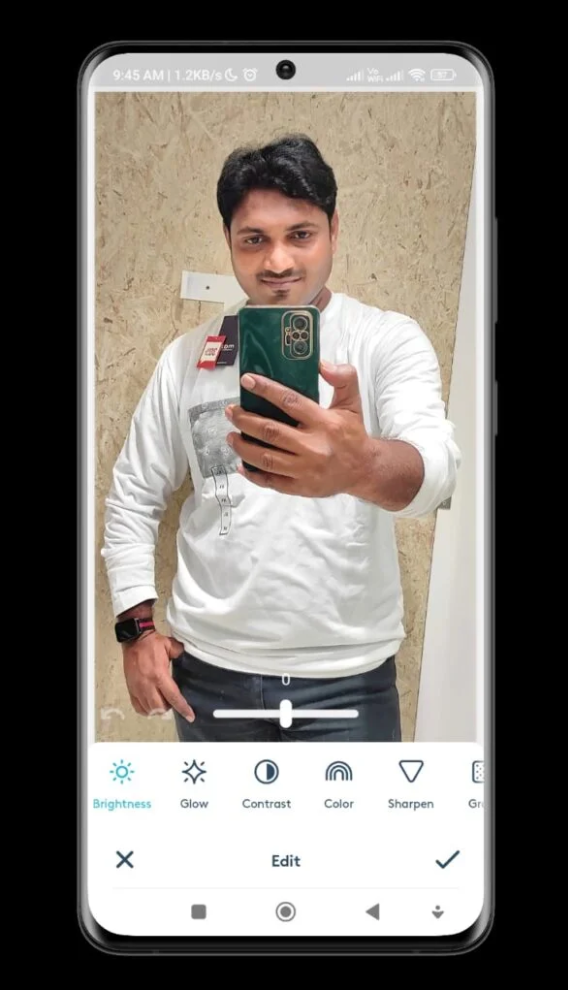
Beneath those sit the ordinary adjustments: brightness, glow, contrast, colour and sharpen. They are the least glamorous part of the app and the part you should reach for first. A correctly exposed photo needs far less retouching than one you try to rescue with skin tools after the fact.
How The Automatic Corrections Make Their Guesses
The one-tap options run a detection pass, lay a mesh over the face, and apply a preset strength inside that mesh. On a well-lit, front-facing shot the guess lands close. On a profile, in dim light, or with a hand crossing the chin, the mesh slips and you end up with softening on a jumper collar or whitening on a fingernail.
The answer is not to avoid automatic mode but to treat it as a first draft. Apply it, then zoom into the edges and hunt for places where the effect has leaked. Every automatic tool here has a manual equivalent with a brush and an eraser, and thirty seconds of erasing usually rescues a bad detection.
There is a strength slider on nearly everything, and it opens higher than most photographs need. Halving it before you judge the result will spare you a lot of waxy, plastic-looking skin.
Backdrop Swaps And Clearing Clutter
The backdrop tools cut a subject away from whatever sits behind them, so you can drop in a flat colour, a blur, or a supplied scene. Cut-out quality depends almost entirely on contrast at the boundary. A person against a plain wall separates cleanly. That same person in front of a bookshelf, with loose hair, will show a ragged fringe where strands meet the shelves.
Single-swipe object removal runs on the same principle as the patch tool, sampling neighbouring pixels and painting them across whatever you dragged over. It deals with a bin bag on an empty pavement well and a chair leg crossing a patterned rug badly. If clean cut-outs matter more to you than face work, a dedicated tool will serve you better.
A dedicated background remover we tested separately
The Video Mode And What It Cannot Do
Video retouching runs the same detection on every frame and tracks the face as the subject moves. When it holds, the result is genuinely impressive: a short clip comes out with even skin and no visible per-frame flicker, which is exactly the thing that gives away a badly retouched video.
It holds less often than the stills do. Quick head turns, a hand sweeping past the face and sudden changes in light all break the track, and the failure shows up as a pulse, with softening fading in and out over a second or two. Keep clips short, keep the camera steady, keep the strength low, and you dodge most of it.
Export costs real time as well. A phone re-encoding video while running detection on every frame gets warm and drains the battery fast, so plan around that if you are editing away from a charger.
Storage, Permissions And Battery Cost
- Photo library access is compulsory, since the app cannot function without reading your camera roll
- Camera access is optional and only matters if you shoot from inside the app
- Edits save as new files, so a heavy session can nearly double the space your photos occupy
- Clearing the app cache reclaims a surprising amount without touching anything you exported
- Older phones stutter in the video timeline long before the stills editor gives any trouble
Find out where processing happens before you edit anything sensitive. Some features run on the handset and some upload an image to a server, and those two arrangements carry very different privacy implications for a photograph of a child or an identity document.
Facetune — Verdict
- Retouch quality on stills — the strongest part of the package
- Learning curve — shallow, most tools explain themselves after one tap
- Video performance — ambitious, but fragile the moment anything moves
- Value — the free set is usable, though the tools you end up wanting mostly are not in it
Summary
A sharp portrait retoucher carrying a video mode that still feels unfinished.
The Parts That Frustrate
The paywall draws the first complaint, and fairly. Enough of the toolbar is gated that you can spend ten minutes building an edit before finding out the tool that finishes it is not part of your tier. Work out what is available to you before you build a routine around any one feature.
The second problem is that defaults push too hard. Preset strengths are tuned to make a before-and-after slider look dramatic, not to survive being viewed at full size. Left where they open, they produce the smoothed, poreless look that people spot instantly on a social feed.
Third, the app encourages a habit worth resisting. Reshaping is easy to start and hard to stop, and the giveaway is never the subject. It is the surroundings. A door frame that bends, a shelf edge that curves, tiles that ripple in a line. Those artefacts are what make an edit obvious to everyone except the person who made it.
A Routine That Keeps Edits Believable
Fix the light first: Correct exposure, contrast and colour before touching a single face tool. Half of what looks like a skin problem turns out to be a lighting problem.
Patch before you smooth: Take out individual marks while the surrounding texture still exists to sample from. Smoothing first destroys the detail the patch tool needs to work with.
Halve every slider: Apply an effect at the strength you think you want, then cut it to half and compare the two. The quieter version is almost always the keeper.
Inspect the surroundings: Zoom out and follow the straight lines near your subject. If any of them bow, the reshape has gone past what the frame can hide.
Judge it at viewing size: Look at the finished file at the size people will actually see it. An edit that survives both a thumbnail and a full-screen view is done.
Questions Readers Send Us About This App
Does it work with no internet connection? Basic retouching does. Anything sold as an AI feature usually wants a connection, because the heavy computation happens on a server rather than in your hand.
Is there an iPhone version? Yes, the app exists on both platforms and the two are close in what they offer, though individual tools do not always arrive on the same day.
Can it edit one person in a group shot? It can, but detection is tuned around a single dominant face. In a group you will be picking faces manually and working through them one at a time.
Will editing cost me image quality? Every save re-encodes the file, so repeatedly editing an already-compressed photo will show. Go back to the original each time instead of re-editing your own export.
Do I need the paid tier for anything useful? No, but if you edit often you will find the edge of the free set within a week.
Install it if you post portraits regularly and want a quick, controlled touch-up before publishing. Give it a miss if your photography is mostly scenery, food or paperwork, because none of the face-aware machinery helps there and a general-purpose editor will do more for you with less fuss.